
LifeCareBalance.com is reader-supported. When you buy through links on our site, we may earn an affiliate commission at no extra cost to you. As an Amazon Associate, we earn from qualifying purchases.
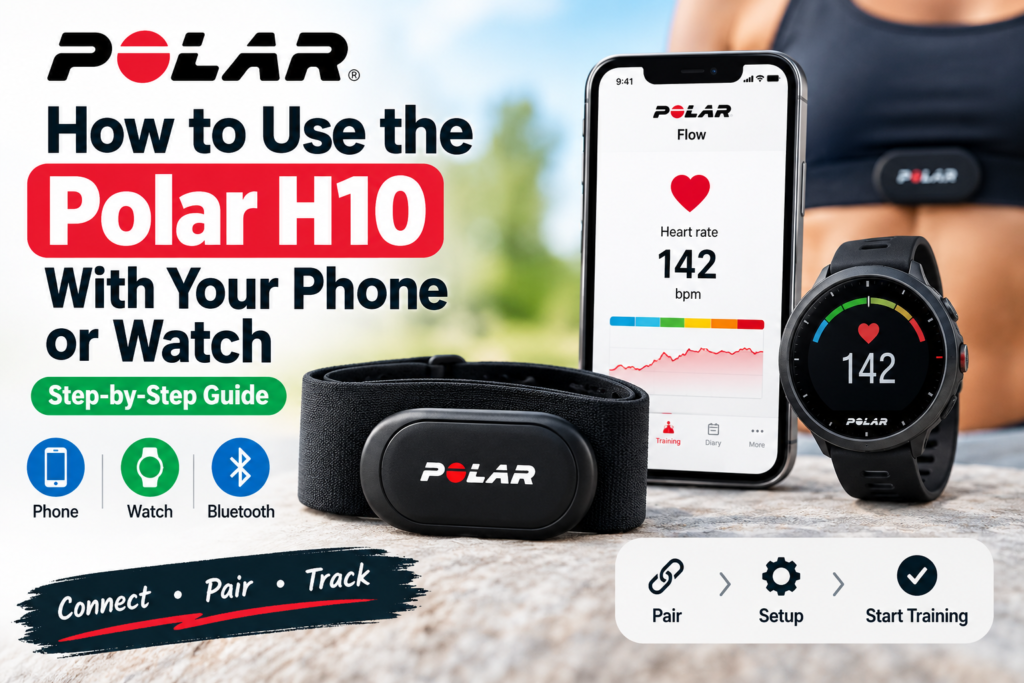
If you own a Polar H10 heart rate monitor, connecting it to your phone or sports watch is the first step toward tracking your workout heart rate. The H10 is a chest-strap sensor that sends heart rate data to compatible smartphones, sports watches, fitness apps, cycling computers, and exercise equipment.
However, pairing can be confusing if you are using more than one device. Your phone may recognize the sensor while your fitness app does not, or your watch may fail to find the H10 during a workout.
This guide explains how to set up the Polar H10, connect it to an iPhone or Android phone, pair it with a compatible sports watch, use two Bluetooth connections, and fix common connection problems.

- 38% Polyamide, 29% Polyurethane, 20% Elastane, 13% Polyester
- Made in the USA or Imported
- WORKS WITH EVERYTHING: Polar HRM works with ALL HRM compatible Equipment.

- Easy-to-use running smartwatch with built-in GPS for pace/distance and wrist-based heart rate; brilliant AMOLED touchscr…
- Up to 11 days of battery life in smartwatch mode and up to 19 hours in GPS mode
- Reach your goals with personalized daily suggested workouts that adapt based on performance and recovery; use Garmin Coa…
Quick Answer: How Do You Connect the Polar H10?
To use your Polar H10, moisten the electrode areas inside the chest strap, attach the sensor, and wear the strap snugly against your skin. Install the Polar Flow app or another compatible fitness app, then follow that app’s instructions to pair the sensor.
For a compatible sports watch, open the watch’s heart rate sensor or accessory settings and search for the Polar H10 while wearing it.
Important: Polar recommends pairing the H10 through the Polar Flow app rather than starting in your phone’s Bluetooth settings. The exact steps can vary by watch, app, and operating system.
1. What You Need Before Setting Up the Polar H10
Before connecting the H10, prepare the following:
- A Polar H10 sensor and compatible chest strap.
- A compatible iPhone or Android phone, or a supported sports watch.
- The Polar Flow or Polar Beat app, if you plan to use a phone.
- Bluetooth or ANT+ support on your receiving device, depending on your intended connection.
- A correctly fitted, moistened chest strap.
Polar’s published compatibility guidance lists iOS 13 or later and Android 7 or later with Bluetooth 4.0 capability as minimum requirements for the relevant Polar heart rate sensor apps and devices. Check the current app-store requirements and your specific phone’s compatibility before proceeding.
The H10 supports Bluetooth Low Energy and ANT+. It can also communicate with compatible legacy Polar equipment using GymLink technology.
Read the official Polar H10 user manual if you need model-specific instructions.
2. How to Wear the Polar H10 Correctly
A good connection starts with correct strap placement. If the electrodes do not make adequate contact with your skin, the sensor may fail to detect your heart rate consistently.
Follow these steps:
- Moisten the electrode areas on the inside of the chest strap.
- Attach the H10 sensor to the strap’s connectors.
- Wrap the strap around your chest, directly against your skin.
- Adjust the strap so it fits securely without restricting your breathing.
- Position the sensor centrally on your chest, with the Polar logo upright.
- Confirm that the moistened electrode areas remain in contact with your skin.
The strap should stay in position as you move. If it slips or feels excessively loose, adjust it before starting your workout.
You do not need to connect the H10 to a phone before putting it on. Wearing the sensor helps activate it and makes it easier for compatible devices to detect it.
3. How to Connect the Polar H10 to an iPhone
You can use the Polar H10 with an iPhone to view live heart rate data in a compatible app. Polar Flow is a suitable starting point for initial setup and firmware updates.
Step-by-step iPhone setup
Step 1: Install Polar Flow.
Download the official Polar Flow app from Apple’s App Store. Sign in to your Polar account or create one if needed.
Step 2: Put on the chest strap.
Moisten the electrodes, attach the sensor, and wear the strap correctly.
Step 3: Open Polar Flow.
Navigate to the Start or Training area of the app. Depending on the app version, you may need to open the training settings or sensor-pairing menu.
Step 4: Start the pairing process.
Follow the on-screen instructions to find the H10. Check that the sensor ID shown in the pairing request matches the ID printed on your sensor.
Step 5: Confirm the connection.
Accept the pairing request. Once the connection is successful, the app should display your live heart rate when you are wearing the sensor correctly.
Step 6: Check for firmware updates.
Polar recommends starting with Flow so you can check for available sensor firmware updates.
If you want to use another fitness app, check that it supports Bluetooth Low Energy heart rate sensors. You may need to add the H10 separately inside that app.
4. How to Connect the Polar H10 to an Android Phone
The Android setup is similar to the iPhone process, although menus and permissions can differ between manufacturers.
Android pairing instructions
- Install Polar Flow from Google Play.
- Open the app and sign in to your Polar account.
- Wear the H10 with the electrode areas moistened.
- Open the app’s Start or Training section.
- Follow the pairing instructions to find the Polar H10.
- Verify the sensor ID before accepting the pairing request.
- Confirm that your heart rate appears in the app.
If Android asks for Bluetooth or nearby-device permissions, review and allow the permissions required by the app for sensor discovery and connection.
Do not assume that every Android phone supports every feature simply because it has Bluetooth. Device compatibility and app behavior can vary.
If the sensor does not appear, close any fitness apps that may already be connected to it and try searching again.
5. How to Pair the Polar H10 With a Sports Watch
The H10 can work with compatible Polar watches and many third-party sports watches that support Bluetooth Low Energy or ANT+ heart rate sensors.
The exact menu depends on your watch model.
Pairing with a compatible Polar watch
- Moisten the electrode areas and wear the H10.
- Open your watch’s settings.
- Find the pairing or sensor settings.
- Select the option to pair a sensor or another device.
- Wait for the watch to find the Polar H10.
- Check the displayed sensor ID.
- Confirm the pairing and wait for the completion message.
On supported Polar watches, the menu may be under Settings → General settings → Pair and sync → Pair sensor or other device.
After pairing, start a compatible training session and check that the watch receives heart rate data from the chest strap.
Pairing with a Garmin or another sports watch
For a third-party watch, the general procedure is:
- Wear the H10 and ensure the electrodes are moist.
- Open the watch’s settings.
- Find the heart rate sensor or accessory menu.
- Choose the option to add a new sensor.
- Select the Polar H10 when it appears.
- Confirm the pairing and test it during a workout.
Your watch must support the wireless protocol used by the sensor. Compatibility with one Garmin model, for example, does not automatically guarantee identical behavior on every Garmin watch.
Consult the manufacturer’s instructions for your exact watch model.
6. Can You Connect the Polar H10 to a Phone and Watch at the Same Time?
Yes. The Polar H10 supports two simultaneous Bluetooth connections, provided the relevant setting is enabled and the receiving devices are compatible.
For example, you might want to:
- View heart rate on a sports watch while exercising.
- Send heart rate data to compatible gym equipment.
- Use a supported phone app alongside another Bluetooth receiver.
How to enable two Bluetooth connections
The setting is available through compatible Polar apps, although the menu may differ by app version.
In Polar Beat, the documented route is generally:
- Open Polar Beat.
- Go to Settings → HR sensor.
- Wear and pair the H10.
- Enable the option for two receiving Bluetooth devices.
In Polar Flow, open the Start or Training area, access the sensor settings, and look for the option to enable two Bluetooth devices.
The sensor firmware and app version may affect availability, so follow the instructions displayed in your current app.
Remember: Pairing a sensor with several devices does not necessarily mean that every device can receive data simultaneously. The H10’s two-device Bluetooth feature is intended for supported combinations. ANT+ is another option when the receiving equipment supports it.
7. How to Use the Polar H10 With Fitness Apps
The H10 is a sensor rather than a standalone smartwatch. A compatible app or receiving device usually displays the heart rate data and records the workout.
Polar Beat and Polar Flow are useful options within the Polar ecosystem. Other fitness apps may also support external Bluetooth or ANT+ heart rate sensors.
Before connecting a third-party app, check the following:
- Does the app support external heart rate sensors?
- Does it support Bluetooth Low Energy, ANT+, or both?
- Does it require pairing inside the app?
- Can it record and save your workout?
- Does it support simultaneous connections if you also use a watch?
Open the app’s heart rate sensor or accessory settings and search for the H10. Once connected, start a short test workout and confirm that the live heart rate is visible.
Do not assume that connecting the sensor to your phone automatically connects it to every app installed on that phone.
8. How to Record a Workout Without Keeping Your Phone Connected
The Polar H10 includes internal memory for one training session. This can be useful if you want to exercise without carrying your phone throughout the workout.
However, the sensor’s memory does not work like a smartwatch display or unlimited workout archive.
Polar’s supported workflow uses the Polar Beat app to start a recording. After the session, the app can retrieve the stored heart rate data from the sensor.
For the correct procedure:
- Put on the H10 and open Polar Beat.
- Follow the app’s instructions for starting a training session using the sensor’s internal memory.
- Confirm that the recording has started before putting your phone away.
- Complete your workout.
- Reconnect through the supported app workflow and allow the recorded data to sync.
Check the current Polar instructions before relying on this feature for a planned session. Do not assume that simply wearing the strap automatically saves every workout.
9. Polar H10 Not Connecting? Try These Fixes
Connection problems do not necessarily mean the sensor is faulty. Work through these checks before replacing it.
Problem 1: The Polar H10 does not appear in the app
Possible causes: The sensor is not active, the strap electrodes are dry, or another device is already connected.
What to do:
- Moisten the electrode areas.
- Wear the strap correctly.
- Close other fitness apps that might be using the sensor.
- Reopen the intended app and search again.
- Check the battery if the sensor remains undetected.
Problem 2: The H10 appears in Bluetooth settings but not in the app
Polar recommends pairing through Polar Flow rather than relying on the phone’s Bluetooth settings.
What to do:
- Open Polar Flow and start the app’s pairing process.
- Follow the prompts shown in the app.
- If you previously paired the sensor directly through the phone settings, follow Polar’s instructions for removing the old pairing and setting it up again.
Problem 3: The watch cannot find the H10
Possible causes: The watch does not support the required connection, the sensor is not being worn, or the watch is searching before the sensor is active.
What to do:
- Wear the H10 with the electrodes moistened.
- Open the watch’s external heart rate sensor menu.
- Check the watch manufacturer’s compatibility guidance.
- Try searching again while keeping the sensor and watch nearby.
Problem 4: Heart rate readings keep dropping
Possible causes: Poor electrode contact, a loose strap, a low battery, wireless interference, or an incompatible app setup.
What to do:
- Reposition the strap and moisten the electrodes.
- Tighten the strap enough to prevent slipping.
- Keep the receiving phone or device in front of you rather than in a back pocket or backpack.
- Close unnecessary apps and check the connection.
- Replace the battery if it is depleted.
If readings remain inconsistent after these checks, consult Polar support.
Problem 5: The H10 connects to one device but not two
Possible causes: The two-device Bluetooth setting is disabled, the app does not support the required connection, or the receiving devices are incompatible.
What to do:
- Enable the two Bluetooth devices option in a supported Polar app.
- Confirm that both receiving devices support the appropriate sensor connection.
- Disconnect unnecessary devices and test the intended combination again.
10. How to Maintain the Polar H10 After Your Workout
Proper care can help preserve the chest strap and sensor.
After training:
- Detach the sensor connector from the strap.
- Rinse the strap under running water.
- Dry the connector with a soft towel.
- Hang the strap to dry.
- Wash the strap regularly according to Polar’s care instructions.
Do not leave the sensor attached to a damp strap after every workout. Sweat and moisture can keep the electrodes active and reduce battery life.
Use the specified CR2025 coin-cell battery when replacement is necessary. Do not substitute a CR2032 battery.
For detailed instructions, see our Polar H10 battery replacement and care guide.
11. Is the Polar H10 Worth Using With a Phone or Watch?
The H10 can be useful if you want a dedicated chest-strap heart rate sensor that works with compatible phones, sports watches, and fitness equipment.
Using it with a phone may be convenient when you want to view heart rate through a supported app. Connecting it to a compatible sports watch can be preferable when you want to record your workout directly on your watch.
Its dual Bluetooth capability adds flexibility for supported two-device setups, while its internal memory offers an option for recording one training session without keeping a phone connected throughout the workout.
However, the H10 does not replace a smartwatch’s screen, GPS, or broader activity-tracking features. Compatibility depends on the receiving device and app.
If you are still deciding whether a chest strap suits your needs, read our Chest Strap vs Smartwatch Heart Rate Tracking guide. For a comparison with another chest strap, see COOSPO H9Z vs Polar H10.
You can also read our COOSPO H9Z Review and COOSPO H9Z setup guide to compare setup approaches across compatible heart rate monitors.
Frequently Asked Questions
Can I use the Polar H10 without a phone?
Yes. The H10 can work with a compatible sports watch or other supported receiver. It can also record one training session in its internal memory when started through the supported Polar Beat workflow.
Does the Polar H10 work with an iPhone?
Yes, with a compatible iPhone and supported app. Polar recommends using Polar Flow for initial pairing and firmware updates.
Does the Polar H10 work with Android?
Yes, with supported Android devices and compatible apps. Check the current compatibility requirements because Android phone features and permissions vary.
Can I connect the Polar H10 to an Apple Watch?
Compatibility depends on the Apple Watch model, watchOS version, and the app or connection method you intend to use. Verify current Apple and Polar guidance before relying on a particular setup.
Can I connect the Polar H10 to a Garmin watch?
Many Garmin sports watches support compatible external Bluetooth or ANT+ heart rate sensors. Check the instructions and supported protocols for your specific Garmin model.
Why does the Polar H10 need a wet strap?
Moistening the electrode areas helps establish electrical contact between the strap and your skin. Poor contact can prevent reliable heart rate detection.
Can the Polar H10 connect to two devices at once?
Yes. It supports two simultaneous Bluetooth connections when the appropriate feature is enabled and the devices are compatible.
Does the Polar H10 store all my workouts?
No. Its internal memory supports one training session, not unlimited long-term storage. A compatible app or receiving device is used to retrieve, record, and manage workout data.
Final Verdict
Connecting the Polar H10 to a phone or compatible sports watch is straightforward once you know where to pair the sensor. Start by wearing the strap correctly, use Polar Flow for initial setup, and pair the sensor separately with any supported watch or third-party device.
If you want to use two Bluetooth receivers at once, enable the relevant setting and confirm that your setup supports it. If the connection fails, check strap contact, pairing settings, compatibility, and battery condition before assuming the sensor is damaged.
For the most reliable instructions, consult the official Polar manual and the guidance for your specific phone, watch, or fitness app.
Official Sources
- Polar H10 User Manual — Pairing
- Polar H10 Compatibility and Getting Started
- Polar: Using the H10 With Multiple Devices
- Polar: Pairing H10 With a Polar Watch
- Polar H10 — Official US Product Information
Affiliate disclosure: LifeCareBalance may earn a commission from qualifying purchases through affiliate links, at no additional cost to the buyer. This guide is for informational purposes and does not replace medical advice or professional monitoring.