
LifeCareBalance.com is reader-supported. When you buy through links on our site, we may earn an affiliate commission at no extra cost to you. As an Amazon Associate, we earn from qualifying purchases.
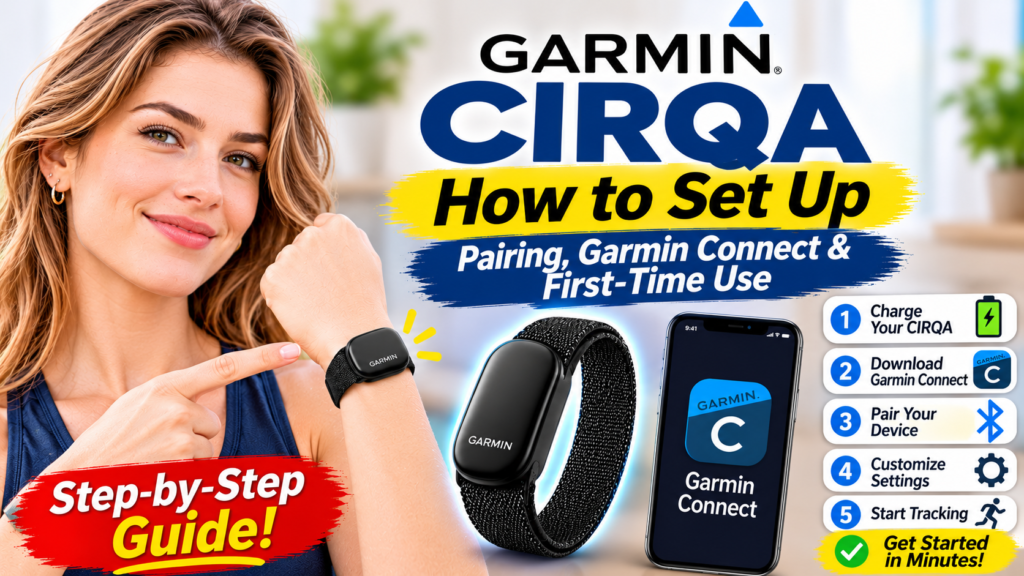
The Garmin CIRQA Smart Band is designed to track health, sleep, and fitness activity without a traditional smartwatch screen. Before you can review your data, you need to activate the band, pair it with your smartphone, and complete the initial setup in Garmin Connect.
The good news is that the basic setup is straightforward. Garmin’s official instructions explain how to activate CIRQA using its charging cable, connect it to the Garmin Connect app, and check for software updates.
This guide walks you through the complete setup process, including Bluetooth pairing, permissions, activity tracking, battery checks, and common troubleshooting steps.
If you are still deciding whether to buy the device, read our Garmin CIRQA Review 2026 before ordering.
Quick Answer: How to Set Up Garmin CIRQA
To set up your Garmin CIRQA Smart Band:
- Install the Garmin Connect app on your compatible iPhone or Android phone.
- Connect the CIRQA module to a power source using the supplied USB-C charging/data cable.
- Wait for the status LED to flash purple, indicating pairing mode.
- Keep your phone within 10 meters (33 feet) of the band.
- Open Garmin Connect and follow the on-screen pairing instructions.
- Complete the requested setup and permissions.
- Check for available software updates.
- Wear the band correctly and allow it to collect data.
Garmin’s official pairing instructions are available in the CIRQA Owner’s Manual.
1. What You Need Before Setting Up Garmin CIRQA
Before beginning, make sure you have everything required for setup.
- Garmin CIRQA Smart Band
- Supplied USB-C charging/data cable
- Compatible iPhone or Android smartphone
- Garmin Connect app
- Bluetooth enabled on your phone
- Internet access for app setup and software updates
Keep your smartphone nearby throughout the process. CIRQA uses the phone’s GPS for supported outdoor activities, so location permissions may also be needed if you want GPS-based distance and pace tracking.
Check the size and fit
Garmin offers CIRQA in small-to-medium and large-to-extra-large sizes. Choose the size that matches your wrist circumference and the manufacturer’s sizing guidance.
The band should fit securely enough for reliable sensor contact without being uncomfortably tight. If it shifts excessively during movement, the collected measurements may be affected.
2. Download the Garmin Connect App
Garmin Connect is the companion app used to pair CIRQA and review its health and fitness data.
On an iPhone
- Open the Apple App Store.
- Search for Garmin Connect.
- Check that the publisher is Garmin.
- Install the app.
- Open it and sign in to your Garmin account, or create an account if needed.
Official download: Garmin Connect on the Apple App Store.
On an Android phone
- Open the Google Play Store.
- Search for Garmin Connect.
- Verify that the app is published by Garmin.
- Install and open the app.
- Sign in or create a Garmin account.
Official download: Garmin Connect on Google Play.
App availability and requirements can vary by country and phone. If the app is unavailable in your region, consult Garmin Support rather than downloading an unofficial copy.
3. Activate Your Garmin CIRQA Smart Band
Your new CIRQA needs to be activated before you can complete pairing.
Follow these steps:
- Connect the supplied USB-C cable to a suitable power source.
- Plug the CIRQA module into the charging cable as instructed by Garmin.
- Check the status LED.
- Wait for the LED to flash purple, which indicates that the device is in pairing mode.
The device should remain in pairing mode until it is paired.
If the LED does not flash purple, make sure the cable is properly connected and the device has power. If needed, follow the manual’s instructions for reactivating pairing mode.
Important: Use the charging cable supplied with the device or a compatible replacement recommended by Garmin. Do not force the module or connector into place.
For detailed activation instructions, see Garmin’s Getting Started guide.
4. Pair Garmin CIRQA With Your Phone
Pairing connects the band to Garmin Connect so the app can display your collected information and manage device settings.
Step-by-step pairing
- Keep the phone within 10 meters (33 feet) of CIRQA.
- Make sure Bluetooth is enabled on the phone.
- Open the Garmin Connect app.
- Follow the app’s instructions to add a device.
- Select CIRQA if prompted to choose your device.
- Follow the remaining on-screen instructions.
- Wait for pairing to finish before closing the app.
The precise screens may vary with your phone, app version, and whether other Garmin devices are already connected to your account.
Should you pair through the phone’s Bluetooth menu?
For the initial setup, follow Garmin Connect’s pairing process rather than attempting to configure everything manually through your phone’s Bluetooth settings.
If you have previously paired CIRQA and need to enter pairing mode manually, Garmin’s instructions say to remove the existing device connection from the phone’s Bluetooth settings first. Then press the CIRQA button quickly three times, or hold it for approximately six seconds, until the LED flashes purple.
Use the official pairing instructions if the process differs on your device.
5. Complete the Initial Setup in Garmin Connect
After pairing, Garmin Connect guides you through the remaining setup options.
Depending on the app version and device settings, you may be asked to review or configure:
- Personal profile information
- Wrist or arm wearing location
- Health and activity preferences
- Automatic activity detection
- Alerts and device settings
- Privacy and data permissions
- Sleep-related settings
Read each prompt carefully and choose settings that match your needs.
Set your wearing location correctly
CIRQA uses information about movement and sensor readings to help identify activities. Garmin Support recommends setting the correct wearing location in the app.
If you intend to wear the band on your wrist, select the appropriate wrist configuration. If you use a supported arm-wearing option, check the instructions and app settings for that placement.
An incorrect wearing location may affect how activities are detected or interpreted.
Review automatic activity detection
CIRQA can automatically detect certain activities. Garmin notes that detection can depend on movement, heart rate, activity history, and whether the feature is enabled.
Review the automatic activity detection setting in Garmin Connect and confirm that it matches your preferences.
You can also manually start an activity from the band or the app, which can be useful when automatic detection misses an exercise session.
6. Check for Garmin CIRQA Software Updates
Once setup is complete, check whether a software update is available.
Garmin recommends keeping the device software current because updates can improve features, privacy, and security.
To check:
- Open Garmin Connect.
- Make sure CIRQA is connected to the app.
- Open the device settings.
- Look for available software updates and follow the on-screen instructions.
- Keep the phone and band close together until the process finishes.
Menu names may differ between app versions. If an update is pending, follow the instructions displayed by Garmin Connect and avoid interrupting the process unnecessarily.
Official guidance: Garmin CIRQA Getting Started.
7. How to Check Battery Status
Garmin advertises up to 10 days of battery life for CIRQA, although actual results depend on settings, usage, and other conditions.
You can check the battery level in Garmin Connect. Garmin’s support instructions describe two options.
Option 1: Check in Garmin Connect
- Open Garmin Connect.
- Select the device icon in the upper-right corner.
- Look for the battery status displayed beside the CIRQA device name.
Option 2: Check the band using its LED
Garmin also provides a battery-status option that lets you check the battery using the band’s LEDs.
To enable it, Garmin’s instructions specify this path:
Garmin Connect → More → Garmin Devices → CIRQA → System → Power Manager → Battery Status
Once enabled, tap the device twice to display the battery status through the LEDs.
Refer to Garmin’s CIRQA FAQ if the menu or LED behavior differs on your device.
8. How to Start Tracking an Activity
CIRQA supports manual activity tracking and automatic detection.
Start an activity using the band
Garmin says you can start a favorite activity using the device’s button. Button behavior depends on your configured controls.
- Make sure the band is properly fitted.
- Use the button to start your configured activity.
- Exercise as usual.
- Press the button again to stop the activity, following the configured controls.
- Sync the band with Garmin Connect.
- Review the activity and correct details if necessary.
Start an activity through Garmin Connect
You can also start an activity in the app. Garmin’s support guidance describes this route:
Garmin Connect → Plus (+) → Record Activity → Select an activity
Choose the activity type and follow the app’s instructions.
Does CIRQA track outdoor distance?
CIRQA uses connected GPS from a compatible smartphone for supported outdoor walks, rides, and runs. Carry your phone and make sure the necessary location permissions are enabled.
Garmin notes that distance and pace estimates may be less accurate on a newly configured device or when the user rarely completes GPS-enabled outdoor activities. The device can use previous GPS-enabled activities to help calibrate its movement estimates.
For improved outdoor tracking, complete an outdoor walk or run while carrying your phone with location permissions enabled.
9. How to View Sleep and Health Data
CIRQA does not have a conventional screen for displaying detailed health information. Instead, sync it with Garmin Connect and review your results in the app.
Depending on the features enabled and available in your region, the app can show information such as:
- Sleep duration and estimated sleep stages
- Sleep score
- Heart-rate trends
- Heart-rate variability information
- Stress tracking
- Body Battery estimates
- Daily steps and activity
- Training and recovery metrics
Allow time for the band to collect data. A new tracker may not have enough history to provide meaningful long-term trends immediately.
Why does my sleep data look incomplete?
Possible reasons include:
- The band was not worn overnight.
- The band was too loose or had poor sensor contact.
- The device had insufficient battery power.
- The device had not synced with Garmin Connect.
- Another wearable was also collecting sleep data.
- The app or device software needs updating.
Garmin advises that wearing multiple devices during sleep can affect which device’s data is recorded and displayed. If you want sleep data from CIRQA specifically, follow Garmin’s guidance on wearing multiple devices.
Remember that sleep stages and wellness scores are estimates, not clinical measurements. Consult a qualified healthcare professional if you have concerns about your sleep or health.
10. Troubleshooting: Garmin CIRQA Won’t Pair
If CIRQA does not appear in Garmin Connect, work through these checks one at a time.
Problem 1: The band does not enter pairing mode
- Connect it to its charging cable.
- Check that the cable is seated properly.
- Look for the purple flashing LED.
- If needed, reactivate pairing mode using Garmin’s documented button procedure.
Problem 2: Garmin Connect cannot find CIRQA
- Keep your phone within 10 meters (33 feet).
- Make sure Bluetooth is enabled.
- Keep the Garmin Connect app open during pairing.
- Check that CIRQA has power.
- Follow the app’s device-pairing instructions.
Problem 3: CIRQA was paired previously
If the band has already been paired with your phone, Garmin advises removing its existing connection from the phone’s Bluetooth settings before manually entering pairing mode.
Then use the button procedure in the official manual and try pairing again through Garmin Connect.
Problem 4: The band connects but data does not appear
- Open Garmin Connect and allow the device to sync.
- Confirm the band is powered on.
- Check that the correct device is associated with your account.
- Review the app’s permissions and device settings.
- Check for software updates.
If the problem continues, consult Garmin Support for CIRQA.
Problem 5: Automatic activity detection is missing workouts
Garmin says activities may not be detected if they last less than 15 minutes, if automatic detection is disabled, or if required consent has not been granted. Low movement, low heart rate, and varying movement patterns can also affect detection.
For activities you perform regularly, consider starting them manually and reviewing any pending automatically detected activities.
11. Does Garmin CIRQA Need a Subscription?
No. Garmin states that a Garmin Connect+ subscription is not required to use CIRQA’s core tracking functions.
You can use Garmin Connect to review supported health and fitness data. Some optional features, including certain coaching plans, pre-built workouts, and additional live activity options, require Garmin Connect+.
For the official feature breakdown, see Garmin CIRQA.
If subscription-free tracking is a key reason for your purchase, read our Garmin CIRQA vs Fitbit Air comparison before deciding.
Frequently Asked Questions
How do I pair Garmin CIRQA for the first time?
Install Garmin Connect, activate CIRQA using its supplied charging cable, wait for the purple pairing LED, keep your phone within 10 meters, and follow the pairing instructions in the app.
Why is my Garmin CIRQA flashing purple?
Garmin’s pairing instructions identify a flashing purple LED as the pairing-mode indicator. If pairing does not complete, follow the manual’s troubleshooting instructions.
Can I use Garmin CIRQA without Garmin Connect?
Garmin Connect is required for pairing and for viewing the device’s health and activity information. CIRQA is designed to work with the app.
Does Garmin CIRQA work with iPhone and Android?
CIRQA supports compatible iPhone and Android smartphones. Check the current Garmin Connect requirements for your phone and region.
How long does Garmin CIRQA take to set up?
Basic setup may take only a few minutes if the app is installed and the band enters pairing mode successfully. Software updates or account setup can add time.
How do I update Garmin CIRQA?
Connect the band to Garmin Connect, open the device settings, and follow any available software-update instructions.
Can Garmin CIRQA track activities without my phone?
You can start supported activities on the band, but connected GPS requires a compatible smartphone for outdoor location tracking. Some tracking features operate on the band and sync to the app later.
Why is my Garmin CIRQA not detecting my workout?
Automatic detection can depend on activity duration, movement, heart rate, settings, and permissions. For more reliable recording, manually start activities you perform regularly.
How do I check Garmin CIRQA’s battery?
Check the battery indicator next to the device name in Garmin Connect. You can also enable the documented LED battery-status option in the device settings.
Can Garmin CIRQA replace a smartwatch?
Not for everyone. CIRQA is screenless and does not provide a conventional display for live workout information. It is better suited to people who want background tracking and review their data in the app.
Final Thoughts
Setting up Garmin CIRQA is a simple process when you follow the manufacturer’s steps: install Garmin Connect, activate the band, enter pairing mode, complete the app setup, and check for software updates.
Once connected, CIRQA can collect health, sleep, and activity information for review in Garmin Connect. Correct fit, appropriate permissions, regular syncing, and current software can help you get the intended experience from the device.
If pairing fails, check the charging connection, purple pairing LED, Bluetooth settings, and Garmin’s official troubleshooting guidance before attempting more complicated fixes.
Before publishing or buying: Always check Garmin’s latest setup instructions and product specifications, as software menus and feature availability can change.
Official Sources
- Garmin CIRQA Owner’s Manual: Pairing
- Garmin CIRQA Getting Started
- Garmin CIRQA FAQ and troubleshooting
- Garmin Support: Getting Started With CIRQA
- Garmin CIRQA Smart Band: Official Product Page
Affiliate disclosure: LifeCareBalance may earn a commission from qualifying purchases made through affiliate links, at no additional cost to the reader.